
A lecturer, or any user with the update course settings capability, can modify key course settings such as the course name, description, format, appearance, completion tracking and access options. These settings help tailor the module layout and functionality to best support individual teaching styles and specific learning objectives.
Step 1 : Go to the desired module. From the top navigation menu, click “Settings” to open the course settings page.
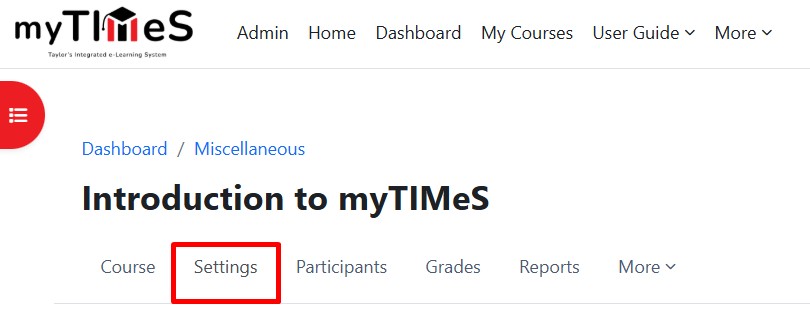
Step 2 : Update the Module Information
General
Under the “General” section, most of the field data are synchronized from the CMS and cannot be edited directly. However, lecturers can update the "Course full name" if changes are required.
Description
Course summary - A short description of the module. This summary is searchable.
Course image - The course image is displayed in "My courses" block. A course image adds visual interest and makes your course more inviting. The recommended image size is 400 px * 300 px.
Course format
The course format determines the layout of your course homepage. The default format is "Custom sections". You may open the Format drop-down list or click HERE to read more about the available course formats description.
Appearance
Force language - If you force a language in a course, the interface of myTIMeS in this course will be in this particular language, even if a student has selected a different preferred language in his/her personal profile.
Number of announcements - How many recent announcements from the Announcements forum should show in the Latest announcements. If an announcements forum is not required in the course, this setting should be set to zero.
Show activity dates - Show activity dates on the module page. By showing the activity date on the module page, students can keep a sense of their progress, know what they need to focus on next and organize their time to meet all deadlines.
Files and uploads
Maximum upload size - The maximum per file size allowed for student uploads to the course. Default size is 50mb. You can further restrict the maximum upload size for each activity.
Completion tracking
Completion tracking - Default setting is No. Update it to "Yes" to enable the completion tracking. You can set conditions for activity completion or course completion in each resource or activity. Course completion criteria may also be based upon Activity completion values found in the activity's settings.
Show activity completion conditions - Show activity completion conditions on the module page. With the new Student Activity Completion feature, students can easily view the criteria for completing upcoming activities, including their opening and due dates. This helps students track their progress, identify completed tasks, and efficiently plan their time to meet deadlines.
Groups
Group mode - Here you can define the group mode at the course level by a pulldown menu. "No groups", "Separate groups" and "Visible groups" are the choices. The selected setting will be the default group mode for all activities defined within that module. The group setting can affect what users see in the participant's list and who they can interact with within activities.
Force - If the group mode is "forced" at a course level, then this particular group mode will be applied to every activity in that course. This will override any activities that may have a special group setting.
Default grouping - If groupings are enabled, a default grouping for course activities and resources may be set.
Step 3 : Click "Save and display" to save the changes and back to the module.