
The folder allows a lecturers to display several course files together. The files may be of different types and they may be uploaded in one go, as a zipped folder which is then unzipped, or they may be added one at a time to an empty folder on the module page. Folder may be added to your module in two ways:
- Drag and drop
- Add an activity or resource menu
Drag and drop
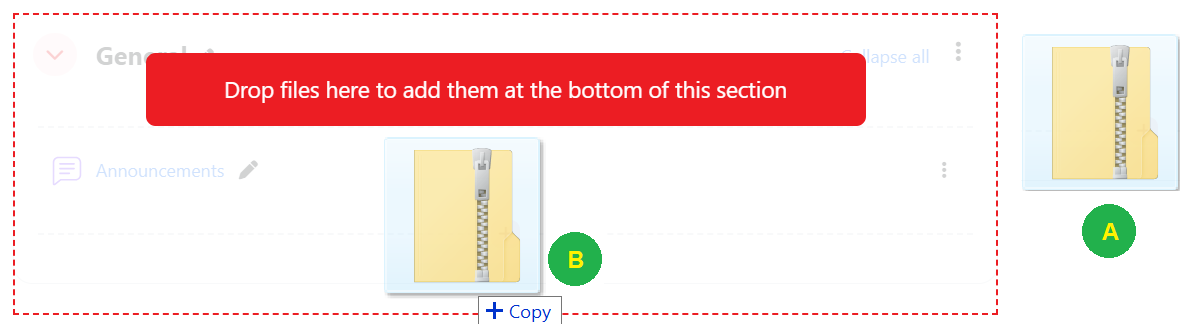
To drag and drop a folder, first zip (compress) it and then with the editing turned on in a course, click and hold the zipped folder, drag it to your chosen section and release.
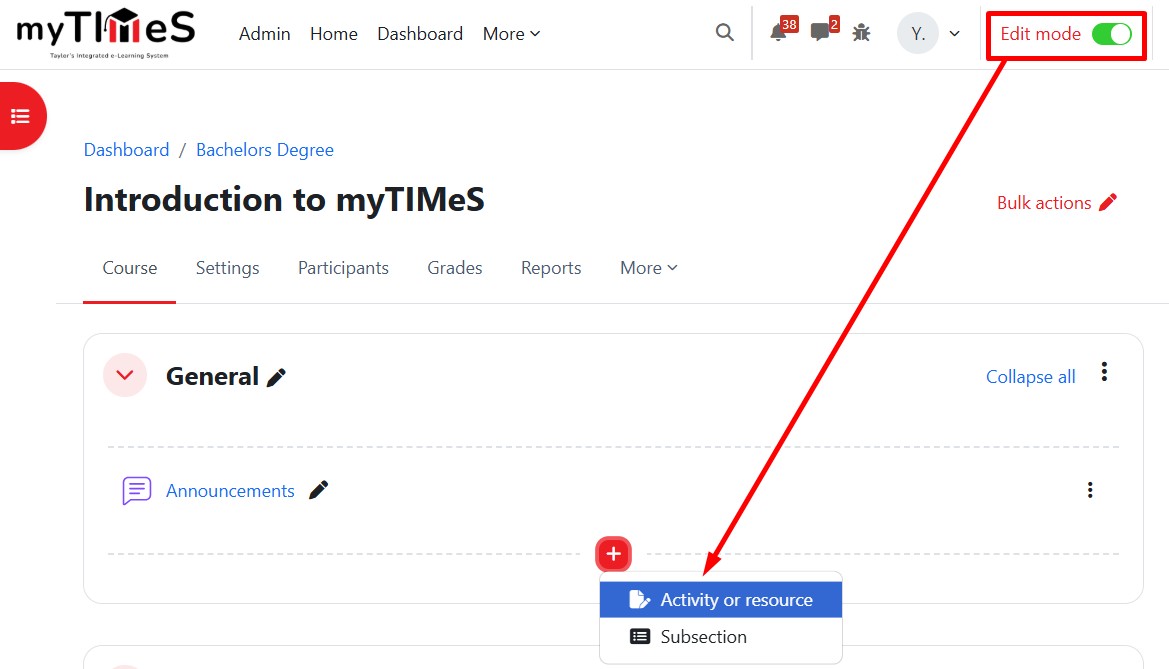
Step 1 : Toggle on the "Edit mode" at the top right of your module page.
Step 2 : Locate the Section where you want to add the Page.
Step 3 : Zip the folder then click and hold the zip file (A) from File Explorer, drag it to your chosen section (B), and release.
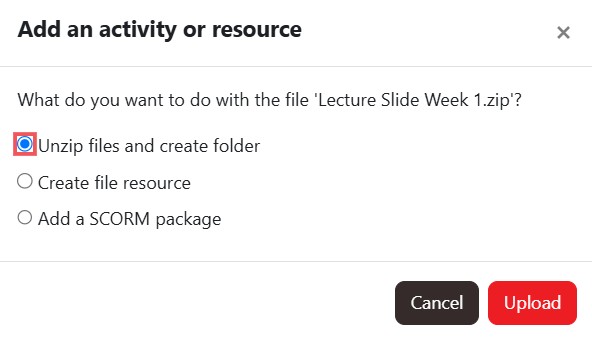
Step 4 : A pop-up window will appear asking what you want to do with the ZIP file. Select "Unzip files and create folder" and click "Upload". The folder will be automatically created on your module page, containing all the extracted files from the ZIP package.
Add an activity or resource menu
Step 1 : Toggle on the "Edit mode" at the top right of your module page.
Step 2 : Locate the Section where you want to add the Page.
Step 3 : At the bottom of the section, click the red "+" button, then select "Activity or resource".
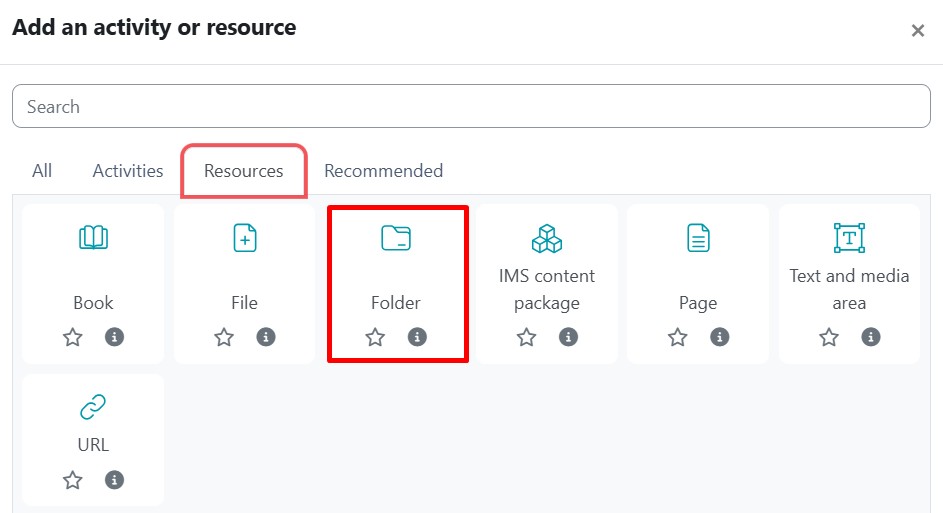
Step 4 : Go to the Resources tab and click the Folder icon. The Adding a new Folder page will open.
Step 5 : Enter the Folder Name and, if required, a description, checking the box if you want the description displayed on the mode page.
Step 6 : In Content, upload the files you want to display in the folder.
Step 7 : in Display folder contents, decide how you want the folder contents to display, and whether you want to include a Download button so so students may download the files as a zipped folder for viewing offline. Use the help icon for more information.
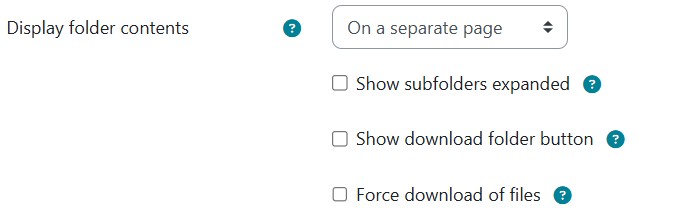
Step 8 : Click "Save and return to course" to save the changes and return to the module.
Reference: For more details, visit the Moodle documentation HERE.