
A page resource creates a link to a screen that displays the content created by the lecturer. The Text editor allows the page to display many different kinds of content such as plain text, images, audio, video, embedded code or a combination of all these. Pages are more accessible than uploading word-processed documents, particularly if the document just contains text to be read and not downloaded.
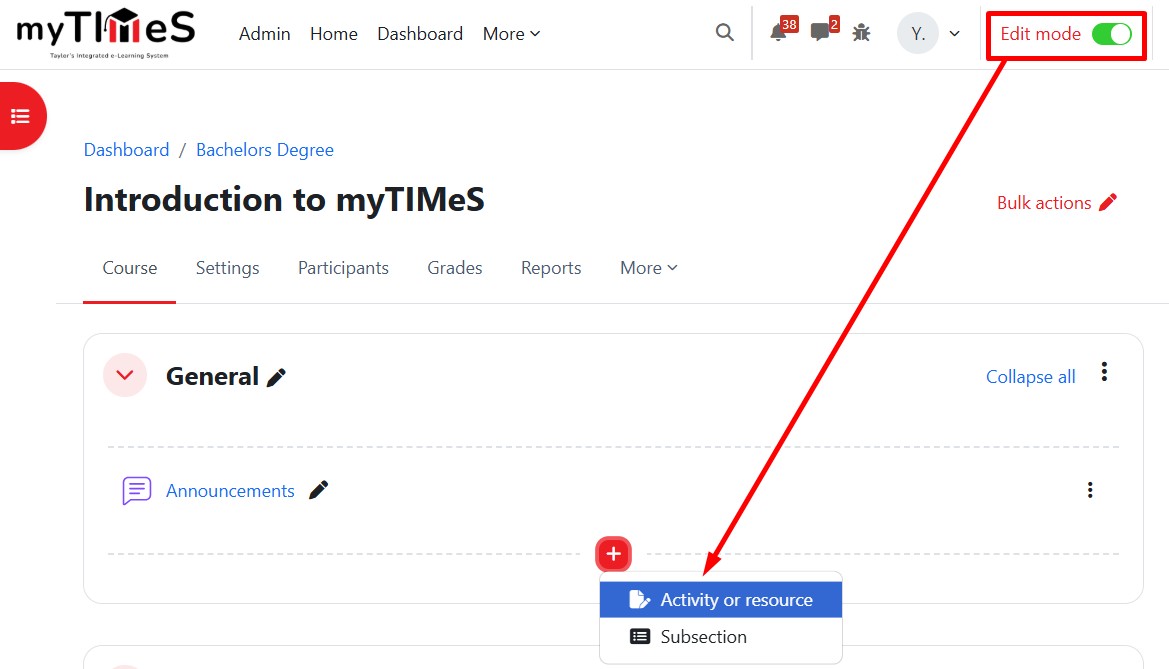
Step 1 : Toggle on the "Edit mode" at the top right of your module page.
Step 2 : Locate the Section where you want to add the Page.
Step 3 : At the bottom of the section, click the red "+" button, then select "Activity or resource".
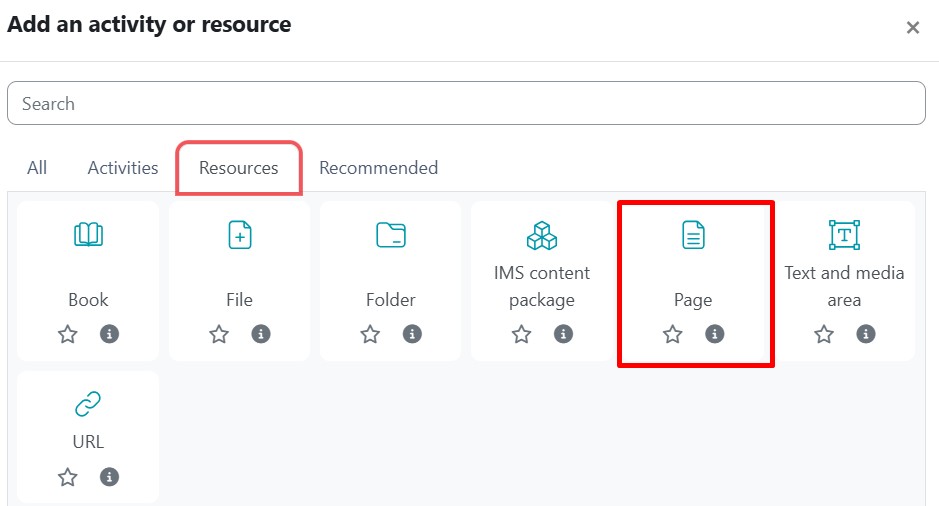
Step 4 : Go to the Resources tab and click the Page icon. The Adding a new Page page will open.
Step 5 : Enter the Page Name and, if required, a description, checking the box if you want the description displayed on the mode page.
Step 6 : In Page Content, add the text, images, links or multimedia you want to display. You can also embed H5P questions.
Step 7 : Expand the Appearance to specify your requirements, particularly whether you want to display the last modified date. This is useful if you will update the page frequently but doesn't look good if the page is static and rarely changed.
Step 8 : Click "Save and return to course" to save the changes and return to the module.
Reference: For more details, visit the Moodle documentation HERE