
The Panopto block allows modules in myTIMeS to link directly to Panopto folders, and to display the recordings in the sidebar. Lecturer also can share the ReWIND recording link as a resource in the module sections.
How to view the Panopto Block?
Go into your module, click on the  icon to open the block drawer on the right-hand side and you will the Panopto block is on the right hand side.

How to share the Panopto ReWIND link as a resource?
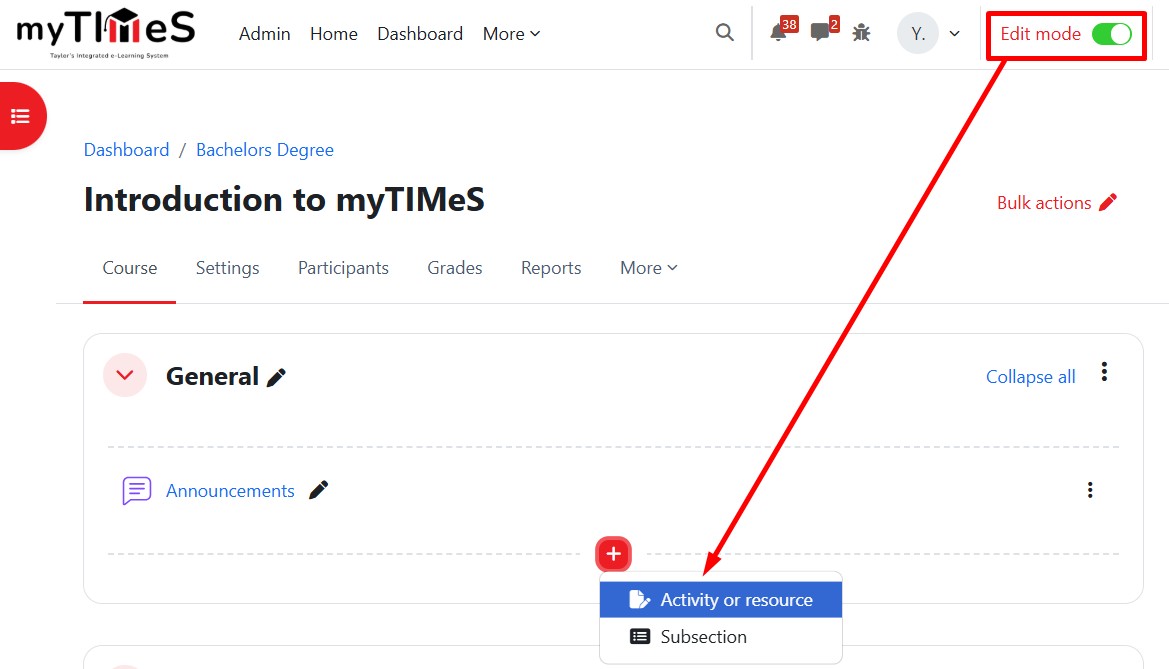
Step 1 : Toggle on the "Edit mode" at the top right of your module page.
Step 2 : Locate the Section where you want to add the Page.
Step 3 : At the bottom of the section, click the red "+" button, then select "Activity or resource".
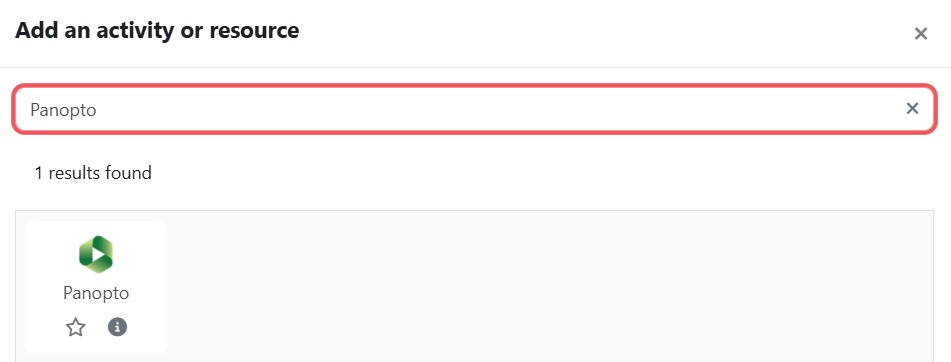
Step 4 : Key in "Panopto" in the search box, and the Panopto resource will be displayed. Click the Panopto icon, and the Adding a new External tool page will open.
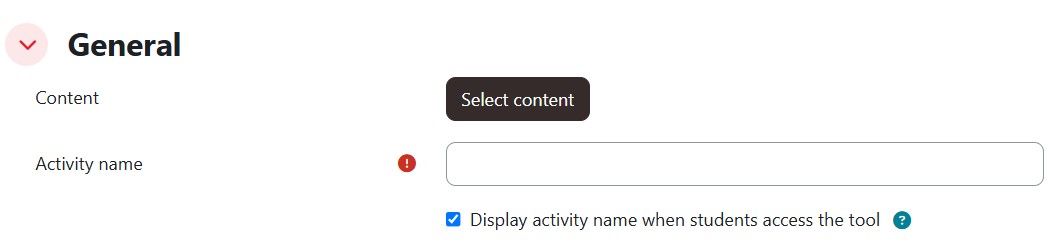
Step 5 : Click "Select Content" button.
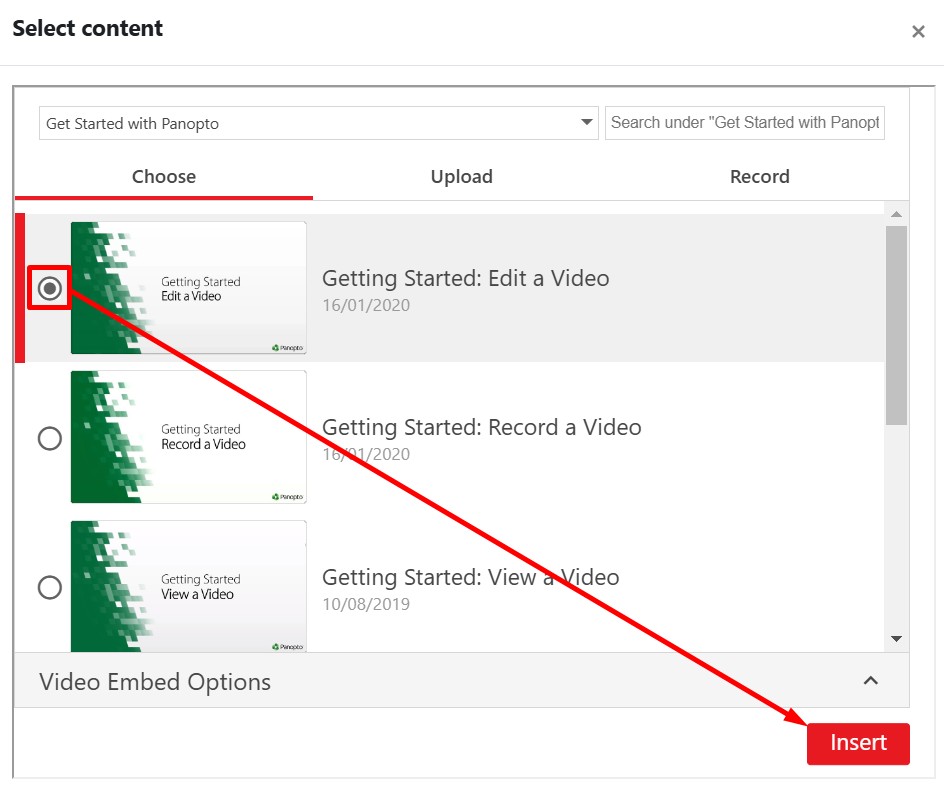
Step 6 : Navigate the folder or search the video. Then, select the video and click "Insert" button.
Step 7 : In the "Activity name" text box, update the video name to the desired video name, then scroll down to click "Save and return to course" button.
Step 8 : The video link is shared in the module's section now.