
Activity completion allows the lecturer to set completion criteria in a specific activity's settings. The criterion might be viewing, receiving a certain score or a student marking it as complete.
Before setting up the Activity completion, you need to enable the Completion tracking. Please go to "Edit course settings" to enable it.
Guide on how to setup Activity completion.
Step 1 : Go into your module.
Step 2 : Toggle on the "Edit mode" at the top right of your module page..
Step 3 : Locate the Section where you want to add the activity.
Step 4 : At the bottom of the section, click the red "+" button, then select "Activity or resource".
Step 5 : Click on any of the activity icon and the Adding a new Activity page will open.
Step 6 : Enter all the required fields and then scroll down to Completion conditions.
Step 7 : Choose the completion conditions.
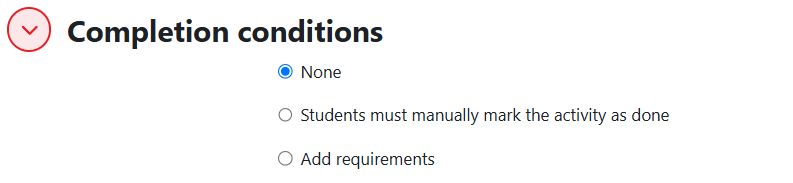
There are three options:
- None - this will not show checks (ticks) next to the activity;
- Students must manually mark the activity as done - students press the check (tick) to change it. (Note: they can do this even without doing the activity!)
- Add requirements - the selected completion criteria must be met before the check (tick) will change style.
Step 8 : Click "Save and return to the course" after you have completed the setting.
Now the students can see the activity's date and completion conditions on the module homepage.

Reference: https://docs.moodle.org/405/en/Activity_completion_settings