
Course format determines the layout of your module site. The default format is "Custom sections".
Let's explore all the available course format in myTIMeS.
- Custom sections
- Weekly sections
- Single activity
- Social
- Grid
- Hero
- Multitopic format
- Collapsed Topic
- Two Column
Custom sections
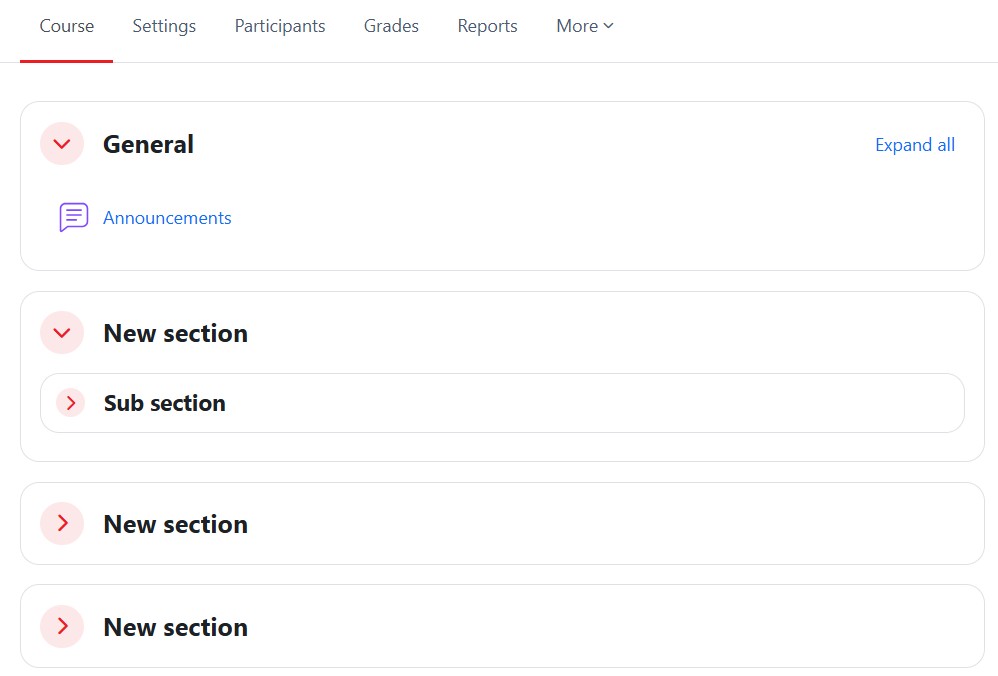
Custom sections usually refer to sections (or “topics”) that lecturers can add, rename, move, or format to organize course content in a way that suits their teaching style. These sections can also be made collapsible, allowing students to expand or collapse topics for easier navigation and a cleaner course layout. In addition, lecturers can now add subsections within a section, providing an extra level of organization for structuring complex modules or grouping related activities and resources.
Weekly section
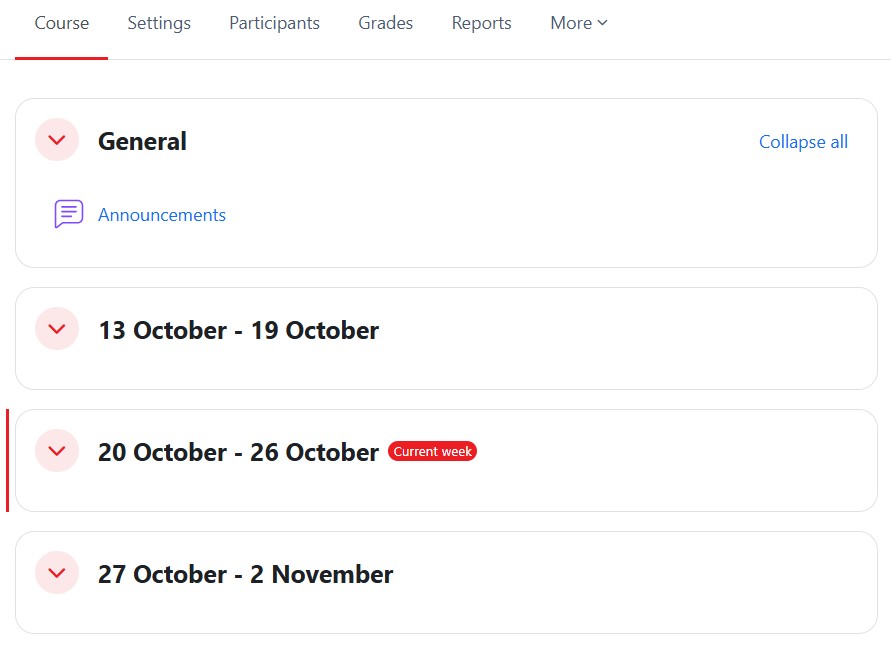
The Weekly section organized the module contents week by week, with each section having a date heading. You can add content, forums, quizzes, and so on in the section for each week. The current week is highlighted.
Single activity
The single activity only has 1 section, and allows the lecturer to add one activity only to the course. Suitable when the module revolves around a single major activity (e.g., a project, research, or presentation).
When the single activity format is selected, a drop down menu appears for the teacher to choose the activity they wish to use.
Social
- Not as commonly used.
- Emphasizes social interaction and collaboration among learners.
- Sections are organized around social activities, discussions, and group work.
The Social format is not as commonly used. The sections are organized around social activities, discussions, and group work, which appears listed on the main page. It is useful for emphasizing social interaction and collaboration among learners.
When selecting the social format, it is possible to specify how many discussions you wish to display on the module page:
Grid
The Grid format is a visually appealing course format that organizes content into a grid of icons, with each icon representing a topic. This format hides all topics initially, and when students click on an icon, it displays the content from the corresponding topic in a “lightbox” style.

Multitopic format
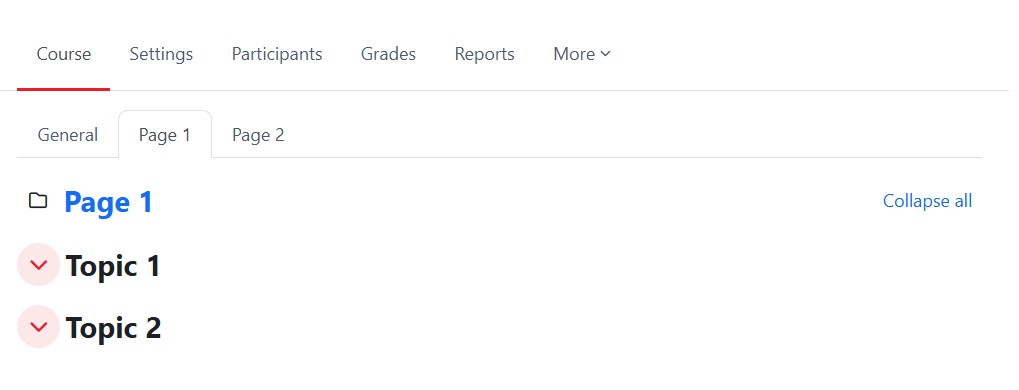
Multitopic format is designed to display multiple topics per page. It achieves this by having two types of sections: topics and pages. This format provides tabs for navigating between pages, Topics can also be timed.
Collapsed Topic
The Collapsed Topics format is a valuable solution for managing module with numerous topics. All sections except the initial one (section 0) have a toggle that allows you to show or hide each section as needed. Lecturers may choose to use this format if they prefer greater control and flexibility over how collapsible sections behave and appear.

Please read the "Edit Course Settings" for how to change the course format.