
A URL (Uniform or Universal Resource Locator) is a link on the internet to a website or online file. Lecturers can use the URL resource to provide their students with web links for research, saving the student time and effort in manually typing out the address.
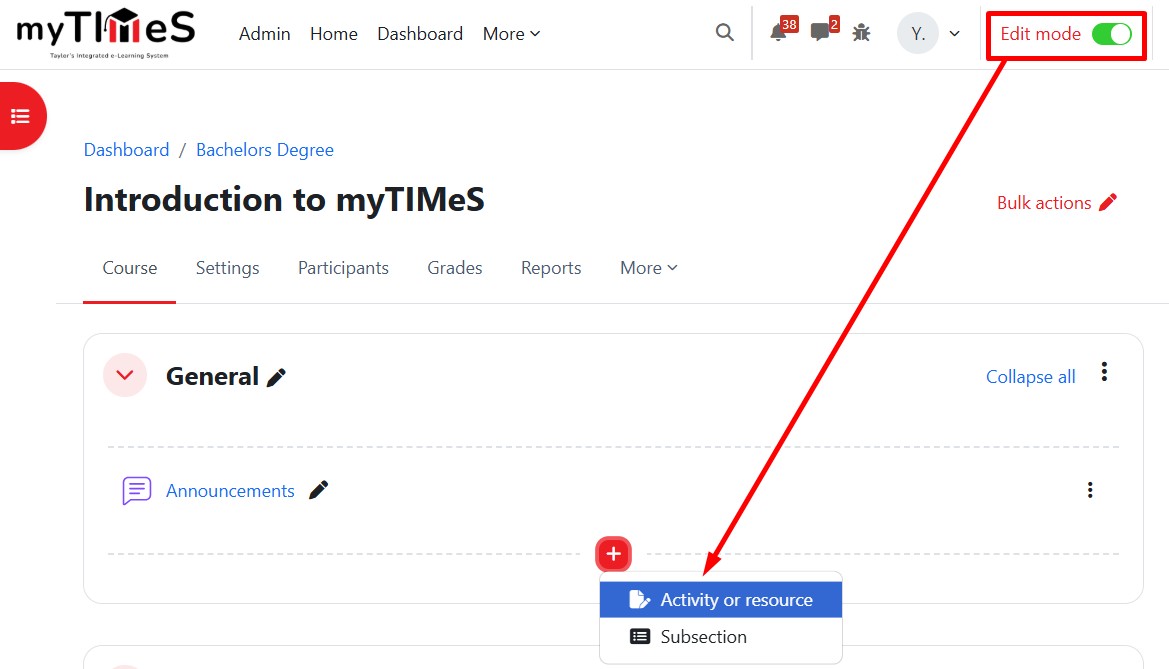
Step 1 : Toggle on the "Edit mode" at the top right of your module page.
Step 2 : Locate the Section where you want to add the Page.
Step 3 : At the bottom of the section, click the red "+" button, then select "Activity or resource".
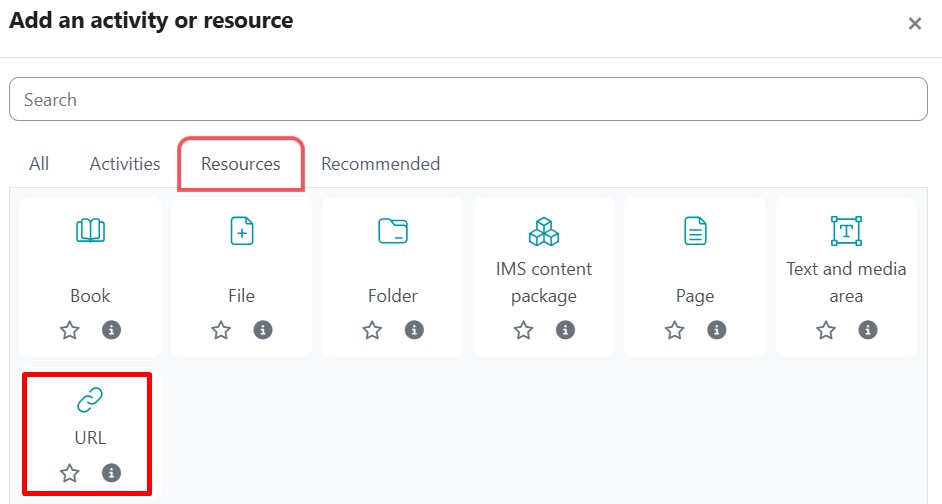
Step 4 : Go to the Resources tab and click the URL icon. The Adding a new URL page will open.
Step 5 : Enter the Page Name and, if required, a description, checking the box if you want the description displayed on the mode page.
Step 6 : In External URL, type the web address of the site you want to link to, or click the Choose a link button to access other options. Include the full https:// at the start.
Step 7 : Expand the Appearance to specify your requirements, particularly whether how you want your URL to display. Use the help icon for more information.
Step 8 : Click "Save and return to course" to save the changes and return to the module.
Reference: For more details, visit the Moodle documentation HERE.