
In every semester you teach a course, even for classes you've taught before, your newly created Module in myTIMeS will initially be empty. Please use the Import function to quickly copy content from a previous semester module and reuse the content for the current semester.
Step 1 : Go into the NEW module where you want to copy the content to.
Step 2 : At the module navigation, click on "More" select "Course reuse".
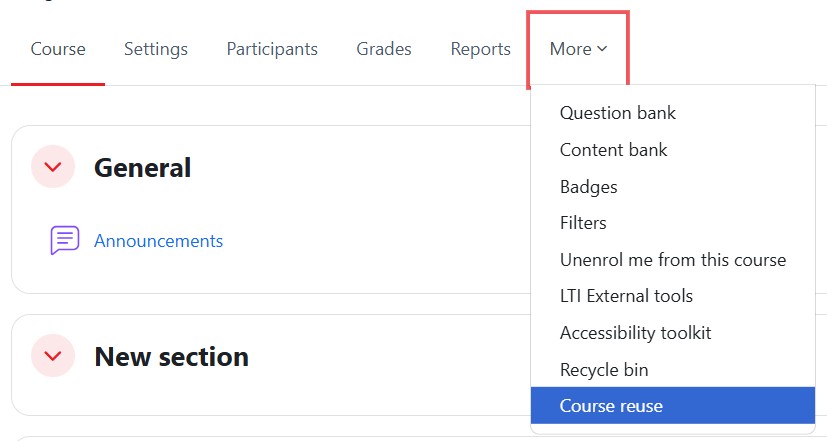
Step 3: Click on "Import".
Step 4 : You’ll see a list of modules you have access to. Please use the search box to find the correct module if you don’t see it immediately. Once you find the module you want to import from, select it and click Continue.

Step 5 : Next, you will see a page with options on what type of data to be included in the import. By default, all the items will be toggled on(selected).
The table below explains each of the items in the Import setting.
|
These are the recommendation of data to be included in the import.
- Include activities and resources
- Include question bank
- Include content bank content
You may exclude other data and then click Next.
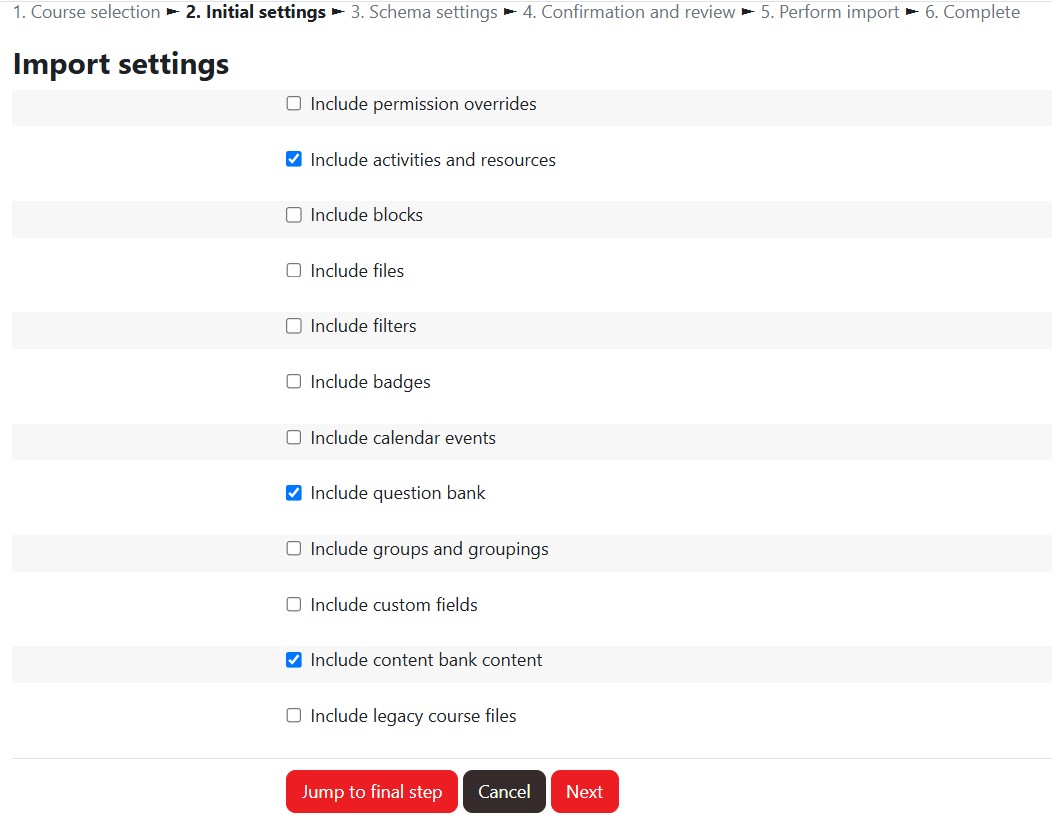
Step 6 : On the Include screen, by default, all the items will be selected. Deselect any items you do not wish to transfer and click "Next".
Note: Please deselect “Announcements”, as a new Announcements forum is automatically created in every course.
Note: Please deselect "Journal" activity, as the Journal activity is not supported in myTIMeS 4.5.

Step 7 : On the Confirmation and review page, you will see a next to the items that are to be imported and X next to the ones that will not be imported. Once you have confirmed and reviewed the settings, click "Perform Import".

Step 8 : Once you get the green "success" message, click "Continue" to return to the module. You should see all of the content you imported there.

Note: You may ignore the warning message that show on top of the course import completion page.