
Assignments allow students to submit work to their teacher for grading. The work may be text typed online or uploaded files of any type the teacher's device can read. Grading may be by simple percentages or custom scales, or more complex rubrics may be used. Students may submit as individuals or in groups.
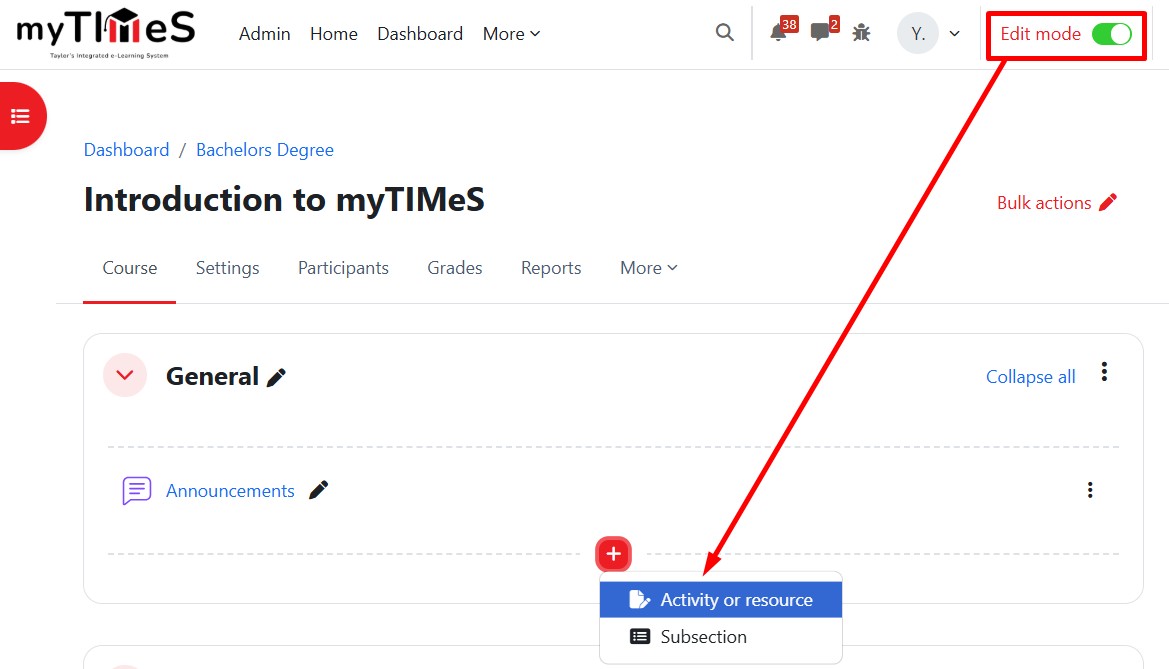
Step 1 : Toggle on the "Edit mode" at the top right of your module page.
Step 2 : Locate the Section where you want to add the Quiz activity.
Step 3 : At the bottom of the section, click the red "+" button, then select "Activity or resource".
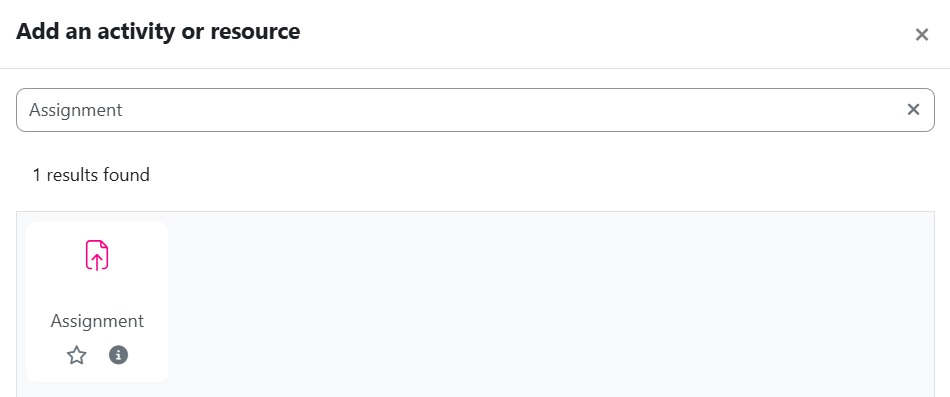
Step 4 : Key in "Assignment" in the search box and the Assignment activity will be displayed. Click on the Assignment icon and the Adding a new Activity page will open.
Step 5 : Configure the Assignment settings
General
-
Assignment name: Fill in the name for your assignment. (This will appear as the link on your module page)
-
Description: Put in the information about the assignment or the instruction for the students.
-
Check "Display description on course page" if you want the description visible in the module page just below the link to the activity (Optional).
- Activity instructions: Add the instructions for students (you can include text, links, images, or videos). This is only shown on the submission page where a student edits and submits their assignment.
Availability
-
Allow submissions from: Date/time students can start submitting.
-
Due date: Submission deadline (students can still submit, but marked as late).
-
Cut-off date: The final date after which no submissions are accepted.
-
Remind me to grade by: A reminder date for lecturers to complete grading of the submissions.
Submission types
-
Select Online text if students should type in rich text.
-
Select File submissions if students should upload file.
-
You can limit:
-
The number of files.
-
Maximum file size.
-
Accepted file types (e.g.
.pdf,.docx).
-
Feedback types
-
Enable Feedback comments, Feedback files, or Offline grading worksheet depending on how you want to grade.
Submission settings
-
Require students to click the submit button: If you want them to confirm their submission.
-
Require that students accept the submission statement: Adds an integrity statement.
Group submission settings
-
Allow group submissions if students work together.
Note: If you plan to use Group submissions in a Moodle Assignment, the grouping must be created first, otherwise the system won’t know which groups belong to this group assignment
Grades
-
Choose grade type (Point or Scale).
-
Set the maximum grade (e.g., 100).
-
Choose your grading method (Simple direct grading, Rubric, or Marking guide).
Step 6 : Click "Save and display".
Reference: https://docs.moodle.org/405/en/Assignment_activity